Friday, February 16. 2024
1. Feel free to ask questions or make comments. Open to answering questions of the personal health/mental and other situations.
2. IF you're in the video/digital promotion or production business in some way, feel free to reach out to me publicly on here or if you'd like, privately.
3. I am interested in doing videos publicly to speak of all this. Already set a meeting at work. Variance and knowledge is IMPORTANT TO ME and others. Some people prefer privacy and silence. I do not. I'd love to speak and promote the truth, feelings and knowledge (or a lot of strangeness). But would love to do regular videos if wanted or necessary and NO ISSUES with comments and openness!
Wednesday, February 14. 2024
Such a pleasure as I work to recover! I will make one more statement that sounds mean but I'm not afraid to finish this finally, regardless of what anyone replies with. I make so few, but this is so overdue in my life and so damn annoying from the office. Zachriel, who I shall name once because I learned so much about his deep trouble, and his shit and his stupidity, who he is where he is from, his lies, his evil, his deepness that was often overlooked. I have no trouble if his mind is eliminated. He must go. His work is the most evil and I dug up so much about him in my online work, prior to my recent health issues, to know him, without exposing him, and I hope he finally got my recommendation to corporations who insisted delivery of my information. So many people opposed him and I agreed. I feel right to oppose his deep evil. I know he thinks I do NOT know who he is - but I do. I know where he is from, who he is, but I had to, due to the office, keep it all quiet publicly. That's how social groups handle this. But he fell into a range of BS that I had to keep raising because he is deeply evil in my POV and not afraid to lie and be an asshole as a person. So now I won't be the same toward his action. I'm sure someone or he thinks there is more information I don't know. That is incorrect. I'm far more intelligent than he ever knew or admitted. Far more connected, far more knowledgeable and he literally told me once I didn't know about him (or his group as he used to say) when I did. Corporate handling required ME remaining quiet...so I'm being as polite limited as I can. I know everything. He'll say I don't - and he should know he's lying if he doesn't realize it.
No more naming of him. He shall leave and we shall return to happiness and love without the truths I exposed about him.
Now I will share other information because that's my last negativity...I've had several things on a few issues I've had to pressure and move on the last few weeks and now I've told everyone I'm ending that.
Continue reading "Good Morning!"
Tuesday, February 13. 2024
Thanking Bird Dog so much! We had a great call, even though I (sadly for a few moments) forgot his name. But it did come back and things are working again.
I loved how he rewrote my original. I asked him to. I was honest and clear about the obvious troll you all know.
Part of my job, or was, is managing that a lot. I finally took time to look that thing up and learned more than he realizes. I know a lot but will keep it quiet. It is not accepted or agreed to by anyone. It must go. I was clear to Bird Dog with some of the truths.
It saddens me to take those approaches about truth when there are liars and evil people like the troll. That is all I'll add as I prepped that before my sudden personal issues. It is part of my online job, I'd put it off for fairness for years. I could not recently. His entries here are evil, pure and simple. He lies far too much and I raised the online responses at my office elsewhere to find it all out. Enough - it's over he must go, my management actually had known as he's more common than you may realize and they tried to be "fair" too much. It's over now.
For me - the move is 100% support and love for all of you and thankfulness of your support.
Here is MY situation.
Health? Amazing for a 61, soon to be 62 year old. My surgeon does the 3mm cancer removal from my left brain and says there is work to do to figure out what it is and what the likely length(s) are. We shall see. 1 year? 10 years? 20 years? We do not know. We shall see.
He said "you can go to the gym after the surgery is repaired as you are encouragingly great shape! How were you against 45 year olds?" I told him I had won a lot in tennis this past summer against "better" 45 year old tennis players. More than even I'd expected. I ran the night of surgery for 7 miles online! Faster than 45 year olds! Suddenly the ONLY person who I couldn't understand (knew the English, but not the logic) was my wife! It had happened for 4 weeks first. Then the surprised issue on Friday Feb 2 and a hospital visit as a result from her with me leading to the study and surgery.... Anyone else? NO PROBLEM for 4 weeks. So odd and Feb 2 the doctors were speaking English and I just stared and said "Hmmm...it's English. I know the words. I cannot tell what you're asking me." Got the name, address, birthday, day lengths, car information, work names and information - so much correct! Health and wife info? English. No clue. LOL, so bizarre. 2 steroid shots - it all clears up till surgery!!!
Work? Lots of GREAT calls. NO issues. None, literally. My boss said "we know you have a few names and words you're working on - all good, though and you're 90% pushing the right words and the 10% are slowdowns to get them right - it's just us reminding you when you have to slow down." So I'm going to work to fix that over the next 2 months.
I am 100% happy, positive, loving, moving for the best. Except the obvious politicians who are liars and lying more for criminal reasons - I am open about that. My own friends (professors at several universities on politics) asked me to be nicer but all admitted I've had incredibly correct comments and truths even the media is hiding now (remember I've spent 38 years in various media over the years and know reality better than the awful things now active in modern media today that I've shifted out of content).
While one troll here has assumed I was a liar or stupid and even suggested it in its own way - I was happy to prove the downside of its input.
Several friends called me this weekend about our political, religion and sports calls (particularly the Super Bowl) and literally everything I said and they responded? "100% correct and great to know." I even helped many people win a ton of money at the Super Bowl because I made my expectations - and as I have always understood sports really well it all paid off!
That is it for now. Love you all. Thank you all for your comments! Your love. I told Bird Dog while work has slown down and impacted my writing, I will write more as I recover. I'm adding more names and friends and I hope they add more as well!
All of our followers and readers - even many who rarely comment, but whether they do or not is meaningless. I just have enjoyed so many and am always happy with all of YOU!
All the best and as my health information becomes more and more available, I'll fill you in, but write about other things as well!
Love you all so much!
Friday, May 31. 2019
Well, not really. It is planting time for tropical things like tomatoes and peppers up here in Yankeeland. Everybody likes to get an early jump on the season, but it's never worth the trouble. Annual plants do not get going until late May and June here.
On the other hand, from now on it's too late for planting shrubs and trees. Water them all you can for the first growing season, but transplantation stress and hot weather is tough. If they hold their own, next Spring they will grow fine on their own - if they like the spot you selected for them.
The great Ralph Snodsmith who had a gardening show on WQXR or somewhere for 100 years always said "Prepare a $50 hole for a $5 plant." With inflation, I'd say a $300 hole for a $30 plant.
Loosen up the roots of a potted plant, or chop them up a bit if the new plant is root-bound. After that, the hole is the thing. Double the diameter of the shrub or tree. A firm base, and fill with enhanced dirt (peat moss, planter soil, manure, whatever). I mix it all up for fill in a wheelbarrow to give the thing an easy start. Then soaker water plentifully the first year. Why? Because the plant doesn't have a sustainable root system yet, and to make it easier to send out new roots. Dry or compacted soil doesn't have the water space between soil particles in which to send new roots.
We planted a bunch of hollies this Spring. Actually, two batches. They are looking good thus far.
Sunday, August 26. 2018
Matthew: "Do not store up for yourselves treasures on earth, where moth and rust consume and where thieves break in and steal; but store up for yourselves treasures in heaven, where neither moth nor rust consumes and where thieves do not break in and steal. For where your treasure is, there your heart will be also."
There is no word for "dostadning" in English. It is "Swedish Death-Cleaning." I can not do the umlauts.
The word refers to a human tendency, in their 50s and 60s, to begin to unload possessions and to streamline life. Furniture, clothing, tools, sports equipment, books, cookware and serving stuff, pictures and artwork, various collections, spare houses, time shares, and so on. Things in closets, things in the attic, things in the basement.
At some point, people realize they will not live long enough to use or wear out the stuff they have. Awareness of morbidity and mortality.
Most people fall somewhere in the middle of a spectrum between spartan minimalists to hoarders, collectors, and accumulators, but most people do end up with an excess of stuff, imagining that "I might need it someday" or "It might come back into fashion" or "my kids might want it." Nope. The psychology and psychiatry of it all is interesting, but we can leave that aside.
Inherited stuff is the biggest challenge for many. Things that connect us to our pasts, in general. Memory aids. Narcissistic and neurotic outlets. Keep what has true meaning while knowing that its meaning will be gone when you die. Death cleaning.
I was raised on this Wordsworth sonnet (among many others- I was thankfully raised on the classics of literature, music, and art by my cultivated parents):
The world is too much with us; late and soon,
Getting and spending, we lay waste our powers;—
Little we see in Nature that is ours;
We have given our hearts away, a sordid boon!
This Sea that bares her bosom to the moon;
The winds that will be howling at all hours,
And are up-gathered now like sleeping flowers;
For this, for everything, we are out of tune;
It moves us not. Great God! I’d rather be
A Pagan suckled in a creed outworn;
So might I, standing on this pleasant lea,
Have glimpses that would make me less forlorn;
Have sight of Proteus rising from the sea;
Or hear old Triton blow his wreathèd horn.
Thursday, February 28. 2013
This is a routine post we make. There's an eensy little bug in the system.
In case you see this pesky thing pop up when you hit the 'Submit' button in the comments:
Just ignore it and hit the Submit button again. If it pops up again, hit the dang button again. The comments are stored on a regular server but the email addresses and such are on a secure server, and occasionally they get slightly out of sync at the exact moment you hit the button.
It's all just a part of the wonderment and awe of living in the Digital Age.
Honest.
Wednesday, February 16. 2011
Maggie's doesn't have a 'Contact' page for a couple of reasons. For starters, most of the gang are working professionals and simply don't have the time to respond to individual inquiries. Then there's the hours needed to sweep out the stalls and slop the hogs that has to be accounted for. And, to be honest, we're kind of a laid-back bunch and aren't very concerned about typos and broken links and whatnot, which is really what a contact page is for. If all you want to do is mouth off about the article, that's why there's a comments section.
By the same token, we always appreciate suggestions for posts and links to interesting things, so we don't consider it 'off-topic' or 'threadjacking' to leave them in the comments.
Whose thread you leave it in would depend on the topic. If it's a newsy item, then the daily links would probably be the best spot. If it's a more worldly item, especially if it relates to the military, then Bruce is your guy. For cultural matters, such as education and the economy, I'd turn it over to Barrie. Dr. Bliss, our resident shrink, doesn't have the time to spend with comments, so don't bother there. Geek stuff and videos and such should be directed to me, Dr. Mercury.
As a small caveat, many times a blogger will glance over the comments ten or twenty minutes later, but then get busy and not check again. So if you leave a suggestion and it goes unanswered, it might just be the person never saw it. If it's actually important, leave it in one of my threads because I answer everybody. (I work at home so I have more time than they do)
In summation, none of the bloggers are going to complain if you jump into one of their posts with an off-topic link. Proper protocol merely dictates that you acknowledge your off-topicness with a quick "Pardon my being off-topic, but have you seen this amazing video?" or words to that effect, just to let people know.
Monday, April 7. 2008
Site Rules
This site is, for the most part, family-oriented and you're expected to treat it that way. If you must cuss, try to keep it on the light side. Any true malevolence will be removed immediately.
All standard site disclaimers apply, such as the bloggers not being responsible for reader comments, instructions, links or suggested programs.
This site recognizes you by IP address. Any flagrant violation of standard blog protocol, such as trolling or sockpuppeting, subjects you to being banned from the entire site. Most offenders will be given one official warning.
This is a blog site, not a forum, and the rules of on-topicness apply. Whether or not an off-topic comment is deleted is left to the discretion of the blogger making the post. In my case, I'll allow the occasional off-topic comment, but if it suddenly breeds a flurry of argumentative responses, I'll usually delete the whole lot.
Personal abuse, directed at either the blogger or another commenter, is also left up to the author of the post. In my posts, the second I see someone getting personally abusive, bang, it's gone.
If a comment of yours has been deleted and you wish to scream to the heavens above about this horrible injustice, there are numerous free 'instant blogsite' companies around where you may do so.
Copyright Issues
We are a non-commercial amateur site and cannot always determine where some content or images originated. If you prove you're the original content owner, we will gladly and respectfully take down any multimedia files, links or attributes which we have innocently, educationally or unknowingly posted.
A Pesky Problem
There's an eensy glitch in the software and occasionally you might see one of these pop up when you hit the 'Submit' button in the comments:

It's a server sync problem and doesn't have anything to do with your comment. Just hit 'Submit' again and most likely it'll go on through.
Comment Area Tips
Overview
This is something of a good news/bad news story. The bad news is that you have to enter the commands manually, rather than use some cute tool bar, but the good news is that we have a lot more options available to us than the average blogsite, such as embedded links, email links, strikethrough fonts, blockquotes, colored text and listed items.
Most of the commands are fairly intuitive; "i" means "italics", "b" means "bold", "url" means "web address", etc.
You start the command by putting it in square brackets, and end it by putting a slash in front of it:
[b] starts bold fonts
[/b] ends them
You'll have the routine down in no time.
The Basics
Italics — [i] text [/i]
Underline — [u] text [/u]
Bold — [b] text [/b]
Strikethrough — [strike] text [/strike]
Web Links
If you just want to slap the web address out there, do it like so:
[url]www.domain.com[/url]
If you want to embed it so another word links to the site, here's the template:
[url=http://www.domain.com] text [/url]
Unless you're confident you can type it by hand, probably the best way to do this is to first highlight the template and hit Ctrl-C to copy it to memory, then punch it into the comment box with Ctrl-V. Then open the site you want in another browser window, click in the address box (which should highlight the entire thing), hit Ctrl-C to copy it to memory and then swing back to Maggie's. Carefully remove the example address and punch in the new one with Ctrl-V. Then delete the "text" and type in the word(s) you want linked to the site. You can test the link using 'Preview'. It'll open the page in a new browser window.
Email Links
The template:
[email]youraddresshere@domain.com[/email]
Please note that spamming companies send out 'bots to scour the web looking for email addresses and that the comments on a blogsite are 'spidered' by the 'bots just as easily as the home page, so you're taking the chance that you'll end up on some spam lists. It would be better to just spell it out: "myaddress at mydomain dot com".
Blockquotes
The template:
[quote] text [/quote]
If you're writing a serious piece about a serious subject and are using a blockquote to back up a point, it's considered 'good form' to include the link to the original quote. And it's perfectly acceptable to blockquote yourself when referring to something you wrote on your own site.
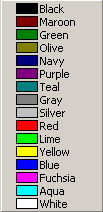 Colored Text Colored Text
For a quick red, green or blue, just use the word, like so:
[color=red] text [/color]
All of the color names to the right should work.
Listing Items
The template:
[list]
[*]Item 1
[*]Item 2
[*]Item 3
[/list]
Any questions, please feel free to ask in the comments.
|